Getting Started
Sight lets you upload a labeled dataset to train your own YOLO detection model in the cloud. Once training is complete, your model is served with both YOLO and LLM capabilities built in — call it from any application via a simple REST API, or use it to check real work from photos.
How it works
graph LR
  A[Create project] --> B[Upload dataset];
  B --> C[Train model in cloud];
  C --> D[Copy API key];
  D --> E[Call inference API];
  E --> F[Get detection results];
The platform handles dataset storage, GPU training and versioned model deployment. You only interact with the console and the API.
See it work first
Before training anything, try Sight in a minute: a test key from your dashboard checks our sample photos for hard hats from your own code.
Step 1 — Create an account
Go to https://sight.raku.so/ and sign in with your work email, or with Google, GitHub or Microsoft. New to Sight? Choose Create an account.
Joining a team?
If a colleague already uses Sight, ask them to invite you from their project's Members page: the invitation adds you to the right project when you first sign in.
Step 2 — Create a new project
After logging in you land on the Projects dashboard. Click + New project in the top-right corner.
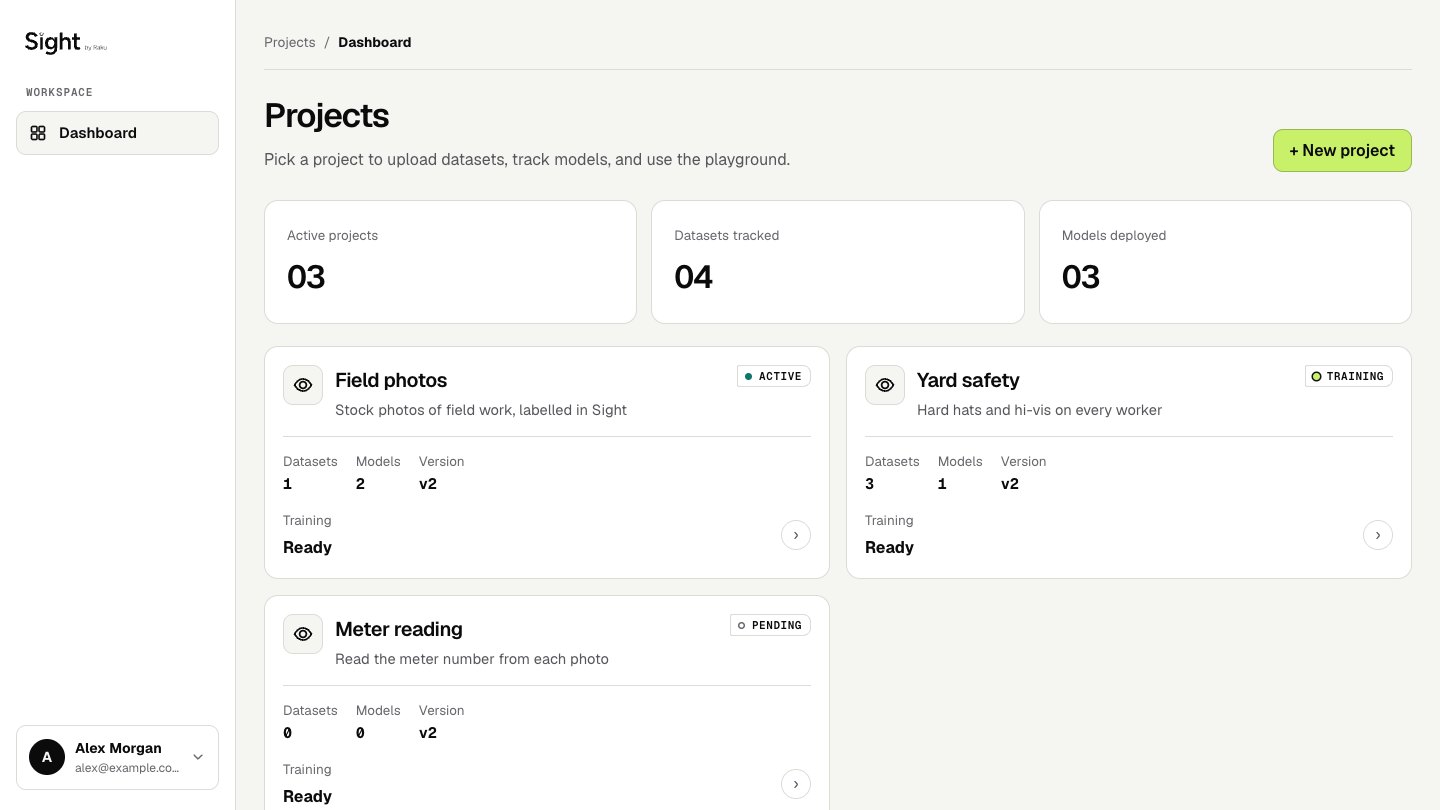
Give your project a name and description, then confirm. Each project has its own datasets, models, and API key.
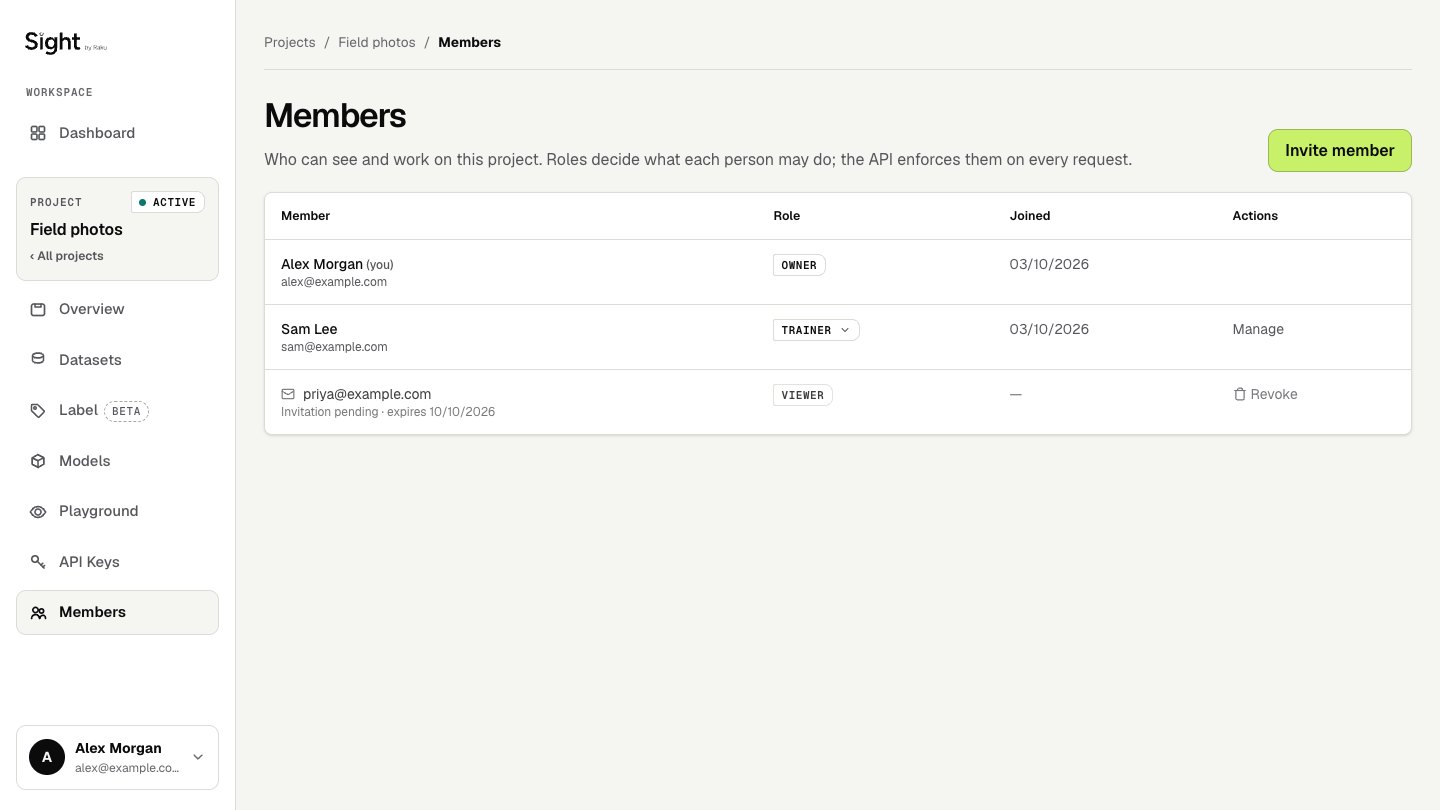
To work on it with colleagues, open Members in the project and choose Invite member. Each person gets a role (owner, admin, trainer or viewer), and the API enforces it on every request.
Step 3 — Find your way around a project
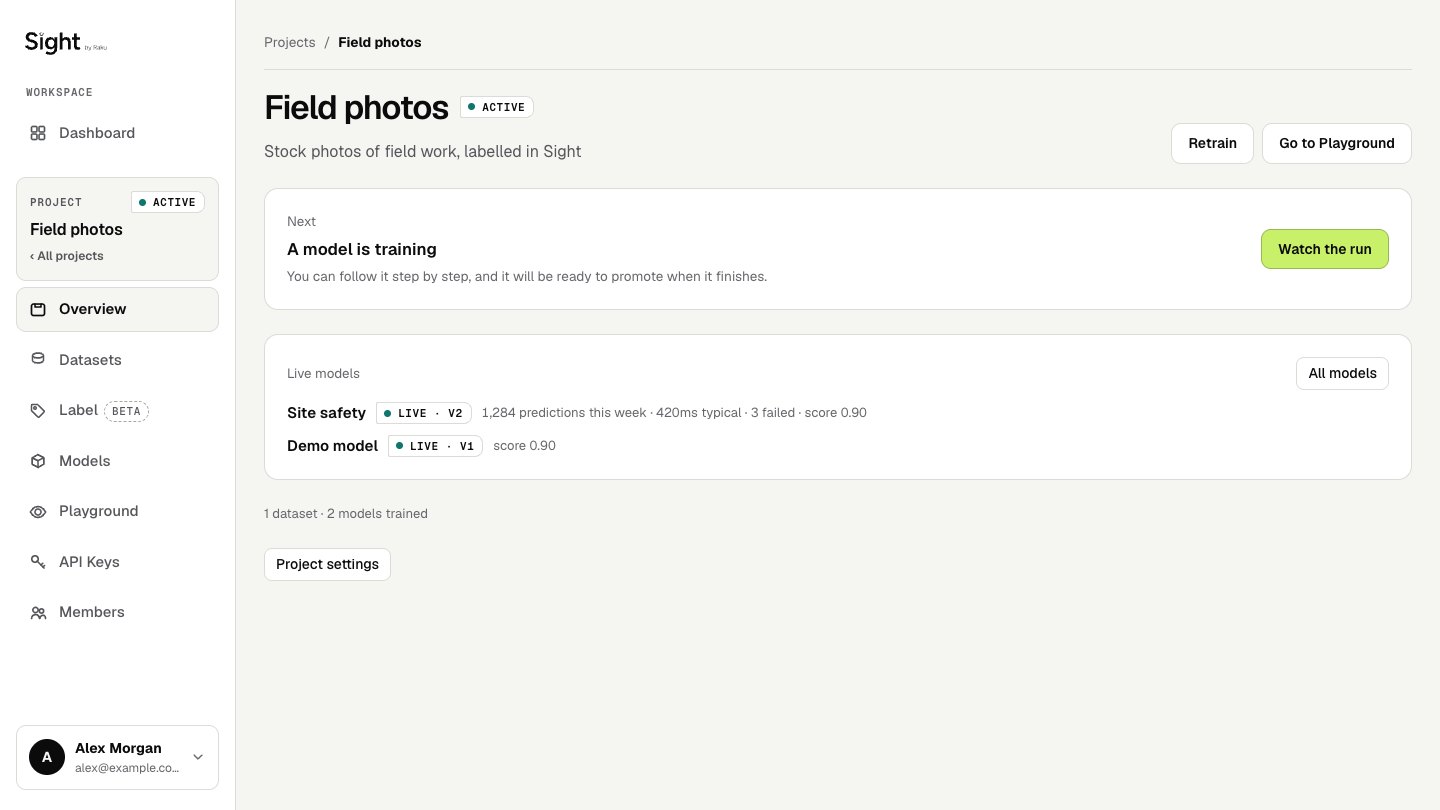
A project opens on its Overview, which says what to do next (train a model, watch a run, try the Playground) and lists the project's models, the ones in use first.
The Models page lists every model and its versions, and says what each model's serving version is doing right now, without reloading the page:
- In use: it is answering a call at this moment. A call usually takes one to three seconds, so a model called now and then shows In use only briefly; the line beside it says when the last call was and how many there have been today, and which API key made the call, by the key's name (or its first 8 characters if it has none).
- Ready: it would answer a call, and is not answering one now. The line beside it says when it was last called, or never used.
- A model whose chosen version cannot answer yet says why: training, training failed, or trained but not running.
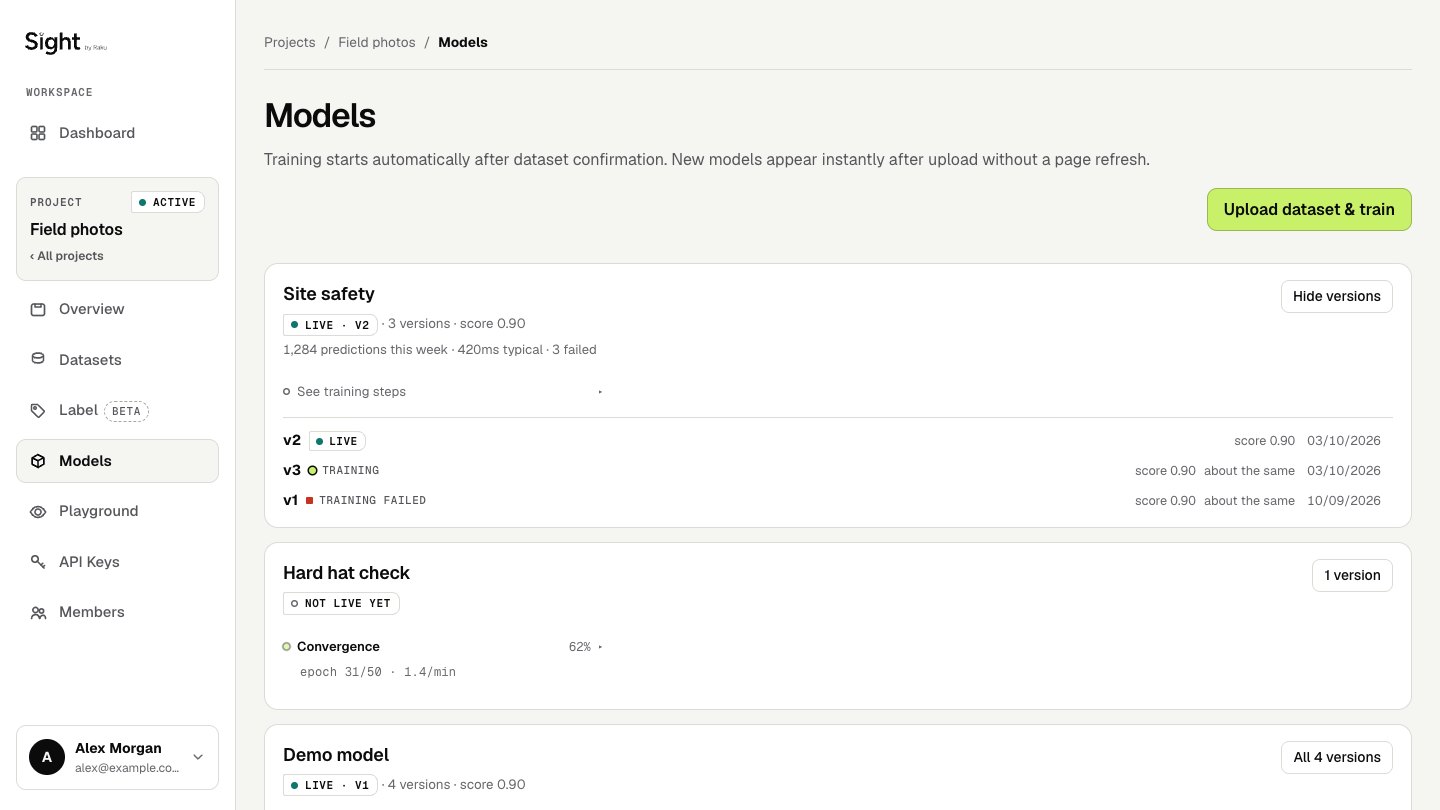
No labelled dataset yet? Label your photos in the browser on the Label page: see Labelling.
Step 4 — Upload a labeled dataset and start training
On the Models page, click Upload dataset & train. Name the model, choose your dataset folder (or a zip of it), and click Upload and Start Training.
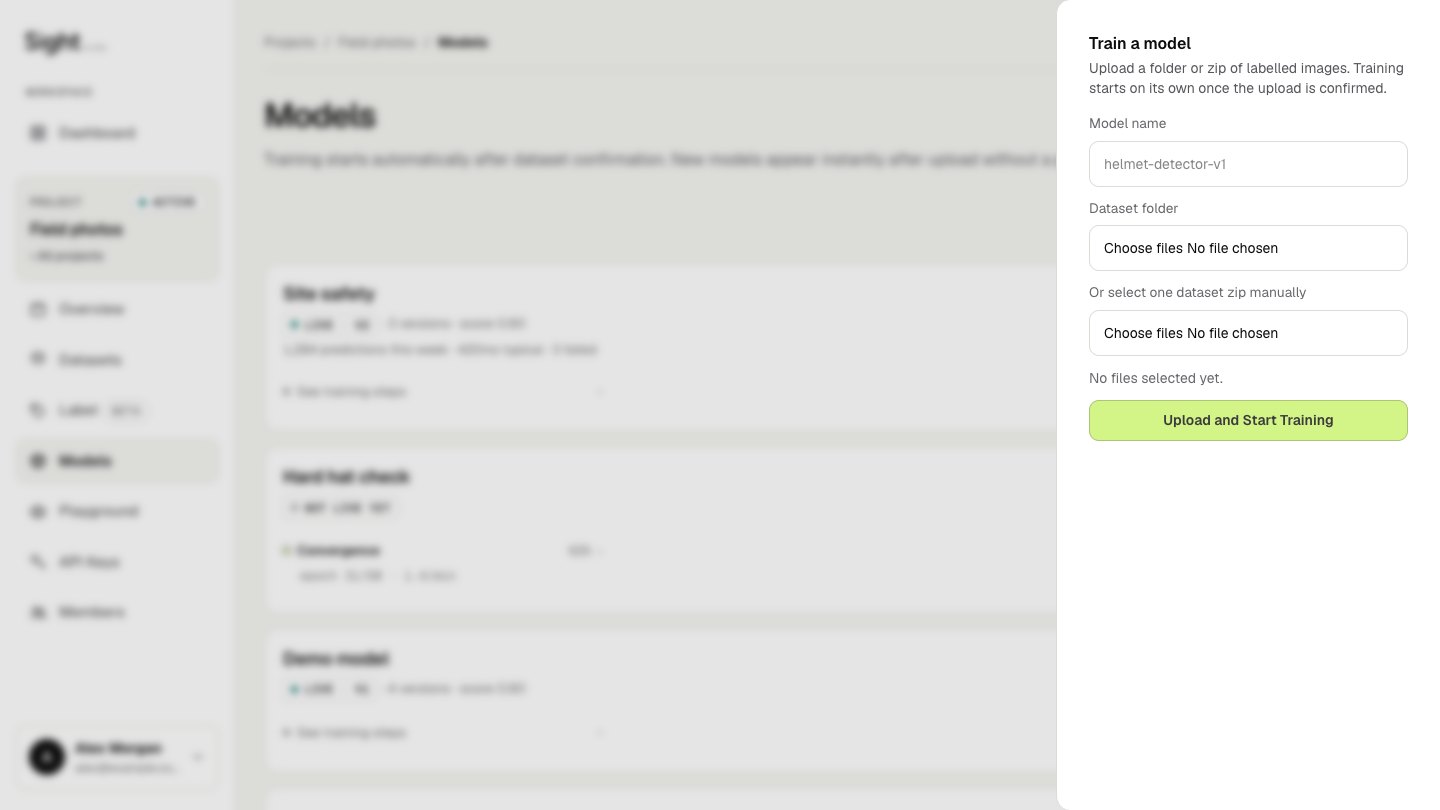
Dataset format
Sight expects YOLO-format annotations. Each image should have a corresponding .txt label file. Zip the entire dataset before uploading.
You do not need to split your images into training and validation sets yourself: if your data.yaml has no separate validation set, Sight sets aside about 20% of the images so that accuracy is measured on images the model did not learn from, and if it already has one, it is used exactly as it is.
Training runs on cloud GPUs. The project's Overview says A model is training: choose Watch the run to follow it step by step. A model's first version starts answering on its own when it finishes; a later version waits until you switch to it (below).
If your plan's training runs, training minutes or models are used up, the drawer says so before anything is uploaded, in the plan's own words.
Two models in one project cannot share a name (capital letters and spaces at either end do not make a new one). To retrain a model, choose A new version of that model in the drawer's Model list instead of typing its name again.
Choosing which version answers
On the Models page, open a model's versions. Each shows its score (overall accuracy, measured on photos that version never learned from), when it was trained and what it learned from. Owners and admins see Use this version beside each running version that is not serving. The page asks first and says what changes: from the next call, the model answers with that version; your keys and code stay the same, and you can switch back the same way at any time.
An older key that was made for one particular version, before keys belonged to your company, keeps answering with that version whatever you choose; the page names it when there is one. Trainers, labellers and viewers see the versions and which one is serving, but not the button.
Switching a model off
Owners and admins can switch a model off from its open versions: Switch this model off…. Before anything changes, the page names every API key that called the model in the last 7 days and how often. While a model is off:
- every API key that uses it is refused, for predictions and photo checks, with a message naming the model;
- the same keys can still save check templates and manage your results webhook, which belong to your company, not to the model;
- you can still try it in the Playground;
- the Models page marks it Off.
Nothing is deleted. Switch on puts it back exactly as it was, with the same versions, keys and serving version. Both are recorded in your company's activity.
Deleting a model or a version
Owners and admins can delete one version, or a whole model, from its open versions, after typing the model's name. Once deleted, it disappears from the console and nothing can call it, and you cannot bring it back yourself; the record of what it answered is kept. A deleted model no longer counts towards your plan's models, and its name can be used again.
Sight will not delete, and says why on the page:
- the version a model is serving (switch to another version first);
- a model that is serving calls;
- a version or model that a working API key still uses (the page names the key; revoke it on the API keys page first);
- a version that is still training.
What a model's weights are
On the Models page, open a model's versions (the button that says how many versions it has, such as 1 version). Under each version whose training saved a weights file, owners, admins and trainers see what that file is:
- its size, for example Weights file: .pt, 5.2 MB;
- the classes the model was trained to find (every class your dataset named);
- the image size it was trained at;
- the model it started from.
The weights file itself cannot be downloaded from your account. Your model runs on Sight: you use it from the Playground, from your own software with its API key, and in photo checks. Only Raku staff can download a model's weights.
Viewers and labellers do not see these details. A version that is still training, or that stopped before saving a weights file, shows none.
Step 5 — Make an API key
A key lets your own software call your model. Keys belong to your company: an owner or admin makes them at Company → API keys, and a project's API Keys tab lists the ones that reach that project's models. A project that is not in a company makes its own keys on its API Keys tab; those can make predictions only.
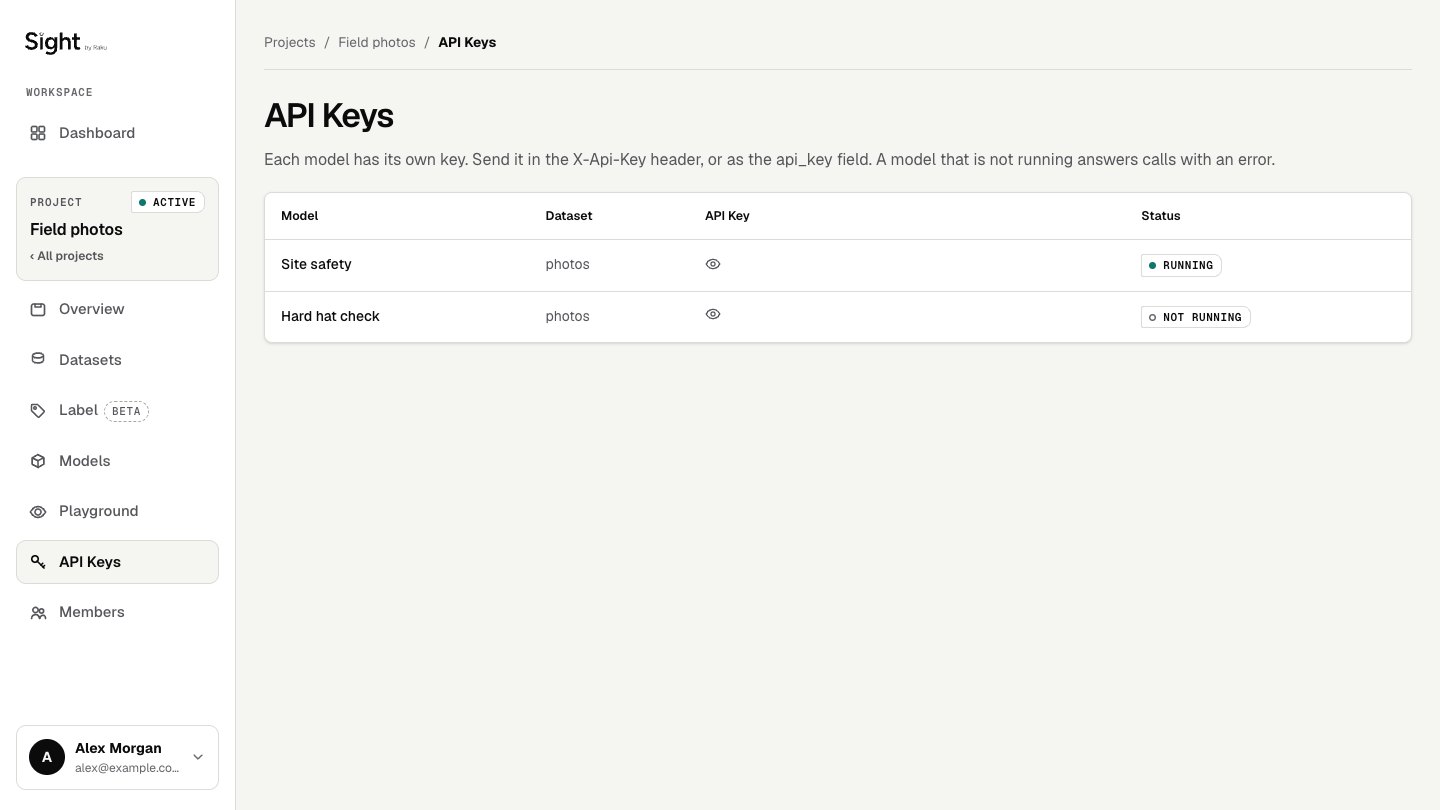
Choose New key, then say:
- Name: what will use it, for example "Field app server".
- Model: which model it calls.
- May: what it is allowed to do. Predictions sends photos to the model; Photo checks sends photos for checks and reads their results; Results webhook sets where results are sent (give it only to your own server). Choose only what that software needs: a key is refused, with a sentence saying why, for anything else.
- Expires after: 30, 90 or 365 days. An expired key is refused; the list marks keys that expire within two weeks, so you can replace them in time.
The key is shown once, when it is made: copy it then. Sight keeps only a fingerprint of it, so nobody, Raku included, can show it to you again. If it is lost, make a new key and revoke the old one.
Every key is listed with what it may do, who made it and when, when it was last used, when it expires and whether it still works. Revoke… stops a key at once: its very next call is refused. Every key made, changed or revoked is recorded, with who did it and when.
Keys that came with a model
Before keys belonged to your company, each model came with a key of its own. Those still work, and answer with that one version of the model only. They are listed as older model keys and may only make predictions. The console cannot show them in full any more: if you did not save yours, make a new key and revoke the old one.
Keep your API key secret
Do not commit your API key to version control. Store it in an environment variable or a secrets manager.
Step 6 — Test or integrate
With your API key ready, you have two options:
Try it in the Playground — head to the Playground tab inside your project on sight.raku.so to upload images and run inference directly in the browser. No code needed — great for verifying your model is working before you ship anything.
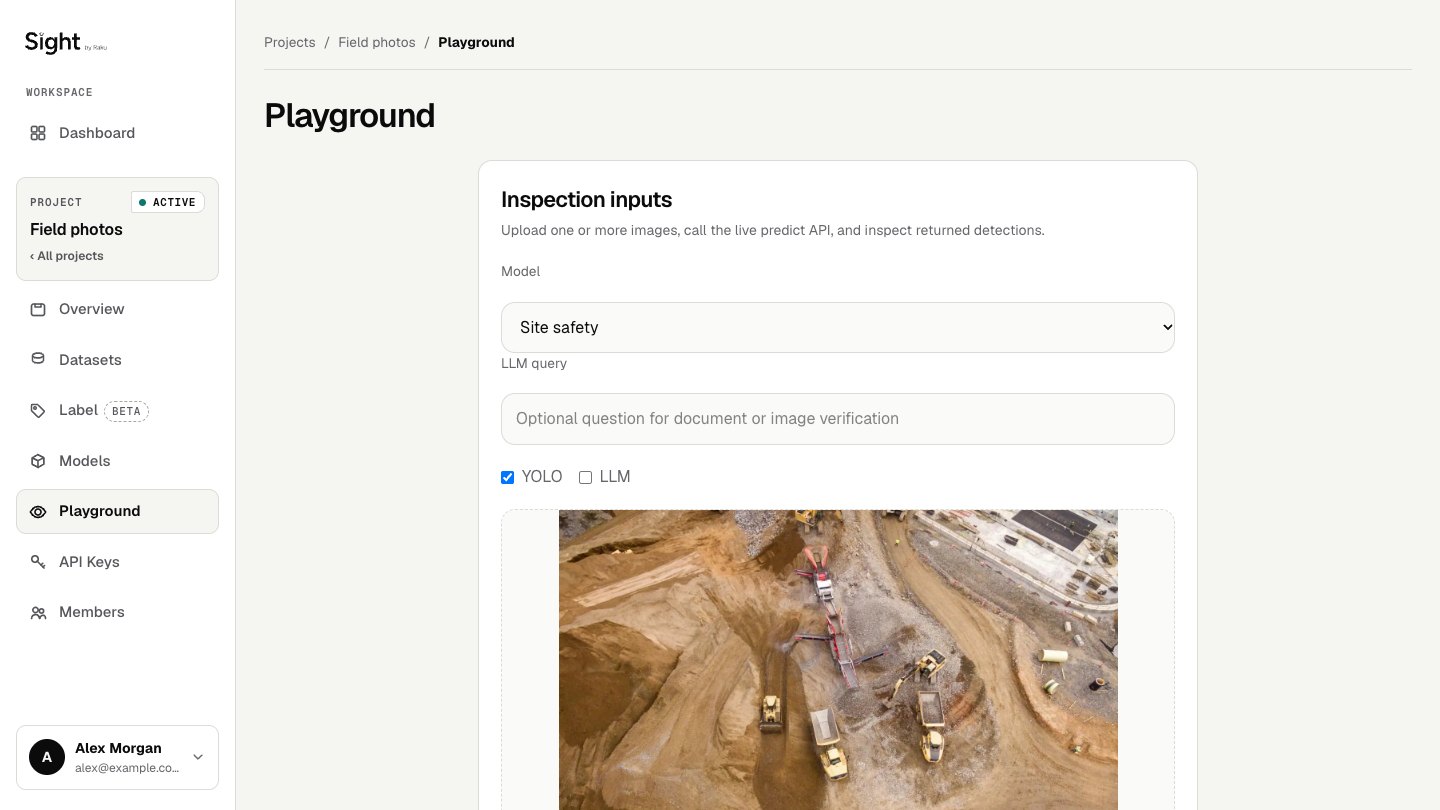
Integrate into your app — if you're ready to call the API from your own code, see the API Integration section for the full reference and code examples in JavaScript, TypeScript, Python, .NET, Java, and Go.
Start with the Playground
It's the fastest way to confirm your trained model responds correctly before wiring up the API in production.
API quick start
The base URL for all inference requests is:
Quick example — batch prediction
Send one or more images and get back a complete result:
import json
import httpx

response = httpx.post(
    "https://sightapi.raku.so/inference/predict/batch",
    data={
        "api_key": "YOUR_API_KEY",
        "query": "find me the serial number",
        "metadata": [json.dumps({"is_yolo": True, "is_llm": True})],
    },
    files=[("files", open("photo.jpg", "rb"))],
)

print(response.json())
const form = new FormData();
form.append("api_key", "YOUR_API_KEY");
form.append("query", "find me the serial number");
form.append("metadata", JSON.stringify({ is_yolo: true, is_llm: true }));
form.append("files", fileInput.files[0]);

const res = await fetch(
  "https://sightapi.raku.so/inference/predict/batch",
  { method: "POST", body: form }
);
console.log(await res.json());
Quick example — streaming prediction
Receive results incrementally as each image is processed:
import json
import httpx

with httpx.Client() as client:
    with client.stream(
        "POST",
        "https://sightapi.raku.so/inference/predict/stream",
        data={
            "api_key": "YOUR_API_KEY",
            "query": "find me the serial number",
            "metadata": [json.dumps({"is_yolo": True, "is_llm": True})],
        },
        files=[("files", open("photo.jpg", "rb"))],
    ) as response:
        for line in response.iter_lines():
            if line:
                print(json.loads(line))
const form = new FormData();
form.append("api_key", "YOUR_API_KEY");
form.append("query", "find me the serial number");
form.append("metadata", JSON.stringify({ is_yolo: true, is_llm: true }));
form.append("files", fileInput.files[0]);

const res = await fetch(
  "https://sightapi.raku.so/inference/predict/stream",
  { method: "POST", body: form }
);

const reader = res.body.getReader();
const decoder = new TextDecoder();
let buffer = "";

while (true) {
  const { done, value } = await reader.read();
  if (done) break;
  buffer += decoder.decode(value, { stream: true });
  const lines = buffer.split("\n");
  buffer = lines.pop();
  for (const line of lines) {
    if (line.trim()) console.log(JSON.parse(line));
  }
}
Inference modes
Each file you send can run one or both inference engines independently:
is_yolo |
is_llm |
What runs |
|---|---|---|
true |
false |
YOLO object detection only — fast, returns bounding boxes |
false |
true |
LLM vision analysis only — slower, returns natural language answers |
true |
true |
Both engines — most complete result |
Next steps
- Photo checks — check real work from photos: verdicts, evidence and what is still missing
-
For AI agents — how an AI agent should call Sight
-
Batch Prediction — full request reference and code examples in all languages
- Streaming Prediction — read NDJSON chunks as results arrive
- Signed URL — generate temporary links to result assets
- API Overview — data types, error codes, and authentication reference